
MP3 players are pocket-sized electronic devices that have the ability to not only store, but play music and other sound files. Although MP3 players are sophisticated devices and there are many verities, they can be placed into one of three broad categories. These categories include hard drive based players, micro hard drive based players, and flash based players.
Hard drive based MP3 players are typically larger and heavier than their competitors due to the fact that they contain a large capacity hard drive inside. This however, may be one of its only weaknesses. These MP3 players provide the largest capacity, ten gigabytes or more, out of the different types of MP3 players. Due to the fact that ten gigabytes equates to roughly 2,900 MP3 files, most consumers buy these players because they accommodate their entire MP3 collection. However, if you are looking for a player to bring with you on a jog or to use at the gym, you may choose to shy away from these players. Any sudden physical movement may cause the internal mechanical hard drive to skip.
Micro hard drive based MP3 players are similar to their big brothers, the hard drive based players, except that they are a bit smaller, both in physical size and internal storage capacity. These MP3 players hold up to six gigabytes of MP3 files, which equals roughly 1,700 songs. Still boasting a respectable capacity, these players have won over many consumers due to their light-weight, compact size. However, these players are also susceptible to skipping if subjected to intense physical movement. Additionally, both hard drive and micro hard drive based players commonly contain rechargeable batteries that can not be replaced for a new battery, but only recharged. If it's small size and moderate capacity that you are in search of this type of player may be just right.
If neither of these players piques your interest, flash based MP3 players may fit your needs. These ultra compact, low capacity players contain no moving parts and consequently, never skip. Another advantage of these players is that their size and lack of moving parts allow them to use minimal power, causing your batteries to last longer. Also, these players almost always use replaceable, disposable batteries, allowing you to put in a new battery if your player should die in the middle of use. However, flash based MP3 players commonly range in capacity from 32 megabytes (roughly 10 songs) to two gigabytes (roughly 570 songs) at most. Therefore, most consumers with a large music collection tend to shy away from this type of MP3 player while athletes can appreciate the sturdy nature of these devices.
Some of the different types of MP3 players include additional features as well. A few of the hard drive players include a small screen that can display pictures and video that is stored on the internal drive. Other players allow for digital voice recording for future playback.

If you are not having the CD or DVD from the manufacturer any more, you'll need to download it from the manufacturer's website. As with finding the printer manual, you can do a Google search for the name and model of your printer plus the word "driver" (e.g., "HP Deskjet 3050 driver").
Here are some links to the driver downloads sections of major printer manufacturers.
HP: Select your printer category or type in the name and model in HP's search box.
Canon: Click on "Consumer & Home Office" then "Printers & Multifunction" then your printer series and finally "Drivers & Software" beside your printer model.
Epson: Choose your printer category then select the model, or type in the product name in Epson's search box.
Make sure you download the driver specifically for your operating system (e.g., Windows XP or Windows 7).Then follow the instructions above, replacing the part with the installation CD and using the downloaded driver instead.
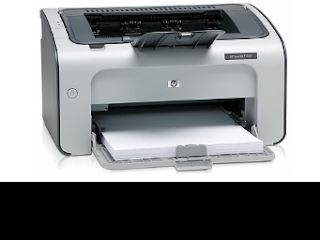
Most printers are easy to set up by following the manufacturer's instructions and using the installation disc. The process is a little trickier if you're new to computing and don't have the CD or instructions any more. This beginner's guide will show you how to get your printer up and running.Install a HP Printer, Install a Dell Printer, Install a Intel Printer,
Use the Manufacturer's Instructions and Installation Disc :
Always default to the instructions and use the disc that came with the printer. If you've lost your printer's manual, try doing a Google search for the name and model of your printer (which you can find by looking at your printer) plus the word "manual" (e.g., "HP Deskjet 3050 manual"). Manuals Online also has a collection of printer manuals that may help.
The set up process is usually the same for most printers:
- Install the cartridges in the printer and add paper to the tray.
- Insert installation CD and run the printer set up application (usually "setup.exe"), which will install the printer drivers.
- Connect your printer to the PC using the USB cable and turn it on.
- Look in your printers folder on your computer (on Windows XP, go to "Start" then "Printers and Faxes". On Vista and WIndows 7, hit the Windows key and type "printers" into the search box to quickly get to the Printers section. For Mac, go to System Preferences and select "Print & Fax".)
- Print a test page. In Windows, right-click on the printer and go to "Properties" then click the "Print Test Page" button. On Mac, click on the "Options & Supplies" button, then the "Utility" tab and click "Print Test Page"
If all goes well, your test page will print and your printer will now be set up.
Leave Below Comments for any Help.

By default browsers will add the date, page number and URL to any page printed from the Internet. For most (if not all) of the printables on this site, you probably don’t want text at the top and bottom of the page. Luckily it’s pretty easy to fix, just pick your browser and follow the instructions below.
Internet Explorer 7 Printing Tips
By default there’s a small image of a printer, click that and go to “Page Setup…”. Below is a screenshot showing the button you’re looking for.
Go to “File”, “Page Setup…”, then erase the text in the “Headers and Footers text boxes.
(The default for header is &w&bPage &p of &P and for footer &u&b&d if you need to put it back later. IE’s default margins are 0.75 inches.)
Click the “OK” button and you’re done.
Firefox Printing Tips
From the menu in the top left corner of your browser, choose “File”, then “Page setup..”. Go to the second tab called “Margins & Header / Footer”, in the drop down lists choose “Blank” for all the items you don’t want printed. The screenshot below gives a better view of what I mean.
If you want, you can also adjust the print margins here as well, Firefox’s default margins are set at 0.5 inches. Once you have your setting chosen, click “OK”, and you’re done!
If you’d like a faster way to get to the print preview feature from within Firefox, the Print / Print Preview extensions is very handy. It adds a submenu to your context menu (the menu that pops up when you right click on a webpage) with “Print”, “Print Preview” and “Page Setup”. Much faster if you change margins, headers etc. often.

Learn how to choose a printer with the right capabilities for your needs
Most consumers do their homework when it comes to selecting a new laptop PC, but in many cases, the purchase of a printer is an afterthought. If you are a business professional or student who relies on producing top quality proposals or research papers, your choice of a printer is critical to your success. You should pinpoint the equipment that is capable of handling the type of work you require, is convenient and trouble-free, and incorporates seamlessly into your workspaces.
The Choices
Depending on your expectations, any of a number of printer types may fill your bill. If you need a full-service machine that includes a scanner, fax, copier, and printer, you are in the market for an all-in-one unit. This type of printer is a great workhorse for a busy office in which you produce printed materials, sign documents and scan them for emailing, plus receive and send information by fax.
If you are not set up with a land-line phone however, you may not want a fax machine, selecting instead an all-in-one without a fax component. You will save a few dollars too. Before you scale back further, though, deciding that copying and scanning are features you don’t need, remember that you may have unforeseen occasions when you are glad your printer can perform these functions.
If you need a specific printer dedicated to a single purpose, such as photo printing, you should select your equipment accordingly. You can save on the purchase price of an all-in-one if you already have such a machine and only need a dedicated fax or an extra scanner.
Another consideration when selecting a printer is the price of replacement ink cartridges for inkjet models or toner cartridges for laser printers. Sometimes a low-priced unit is not such a great buy if you must devote big bucks to purchasing refills. Also check whether the printer comes with full-sized cartridges or “starter” cartridges that will require you to purchase refills sooner.
Check the Specs
When you have narrowed down your choices, check the specs on the box for compatibility with your PC’s operating system, especially if you use Windows XP or earlier Windows systems. Printer manufacturers gear their latest products toward the latest Windows version, so currently most of them are designed for Windows 7 and Vista compatibility.
If a wireless printer is a must for your work environment, choose one that will serve all the PCs in your home or small business network via wireless modem. If you plan to use your printer at home while connected to your work PC via a remote desktop application, make sure that the printer you purchase works compatibly with the operating systems on your work and home PCs.
Other Functional Options
You should look for other specs that may be important for your specific printer applications to ensure that the device is going to answer all your needs. One useful way to compare the numerous functions of your top three models is to compare them side by side on an office supply website that sells several kinds.
Some of the printing functions that might make a difference in your use of a printer include automatic duplexing–two-sided printing; enlargement or reduction of an original document; and the resolution–measured in dpi or dots-per-inch–of both black and color documents that the printer can produce and fax.
Media Choices
If you run large print jobs that you cannot always supervise, you should check the paper-tray capacity of the printer as well as the speed with which it processes, expressed in terms of pages per minute. Be sure the printer is tough enough for your usage by checking the number of images per month it is designed to process.
Also, if you plan to print more than just paper and envelopes, check to see if the printer accepts media such as banners, greeting cards, magnet sheets, or iron-on transfer sheets. Can the copier use legal-sized paper as well as letter-sized?
Further Considerations
Don’t overlook some common-sense issues in making your printer selection. If you have limited space and need a machine with specific dimensions, be sure your the machine is sized appropriately. Double check what kind of connection the printer requires–USB, high-speed USB, Ethernet, etc–to prevent nasty surprises when you try to set it up.