
From the user standpoint, email seems so simple. You set the email address of the person to whom you want to send the email, compose your message and click 'Send'.
All done.
In reality, sending your message off into the network cloud is a bit like sending Little Red Riding Hood into the deep dark woods. You never know what might happen.
In this diagram, the sender is a human being using their company account to send an email to someone at a different company.
Step A: Sender creates and sends an email
The originating sender creates an email in their Mail User Agent (MUA) and clicks 'Send'. The MUA is the application the originating sender uses to compose and read email, such as Eudora, Outlook, etc.
Step B: Sender's MDA/MTA routes the email
The sender's MUA transfers the email to a Mail Delivery Agent (MDA). Frequently, the sender's MTA also handles the responsibilities of an MDA. Several of the most common MTAs do this, including sendmail and qmail (which Kavi uses).
The MDA/MTA accepts the email, then routes it to local mailboxes or forwards it if it isn't locally addressed.
In our diagram, an MDA forwards the email to an MTA and it enters the first of a series of "network clouds," labeled as a "Company Network" cloud.
Step C: Network Cloud
An email can encounter a network cloud within a large company or ISP, or the largest network cloud in existence: the Internet. The network cloud may encompass a multitude of mail servers, DNS servers, routers, lions, tigers, bears (wolves!) and other devices and services too numerous to mention. These are prone to be slow when processing an unusually heavy load, temporarily unable to receive an email when taken down for maintenance, and sometimes may not have identified themselves properly to the Internet through the Domain Name System (DNS) so that other MTAs in the network cloud are unable to deliver mail as addressed. These devices may be protected by firewalls, spam filters and malware detection software that may bounce or even delete an email. When an email is deleted by this kind of software, it tends to fail silently, so the sender is given no information about where or when the delivery failure occurred.
Email service providers and other companies that process a large volume of email often have their own, private network clouds. These organizations commonly have multiple mail servers, and route all email through a central gateway server (i.e., mail hub) that redistributes mail to whichever MTA is available. Email on these secondary MTAs must usually wait for the primary MTA (i.e., the designated host for that domain) to become available, at which time the secondary mail server will transfer its messages to the primary MTA.
Step D: Email Queue
The email in the diagram is addressed to someone at another company, so it enters an email queue with other outgoing email messages. If there is a high volume of mail in the queue—either because there are many messages or the messages are unusually large, or both—the message will be delayed in the queue until the MTA processes the messages ahead of it.
Step E: MTA to MTA Transfer
When transferring an email, the sending MTA handles all aspects of mail delivery until the message has been either accepted or rejected by the receiving MTA.
As the email clears the queue, it enters the Internet network cloud, where it is routed along a host-to-host chain of servers. Each MTA in the Internet network cloud needs to "stop and ask directions" from the Domain Name System (DNS) in order to identify the next MTA in the delivery chain. The exact route depends partly on server availability and mostly on which MTA can be found to accept email for the domain specified in the address. Most email takes a path that is dependent on server availability, so a pair of messages originating from the same host and addressed to the same receiving host could take different paths. These days, it's mostly spammers that specify any part of the path, deliberately routing their message through a series of relay servers in an attempt to obscure the true origin of the message.
To find the recipient's IP address and mailbox, the MTA must drill down through the Domain Name System (DNS), which consists of a set of servers distributed across the Internet. Beginning with the root nameservers at the top-level domain (.tld), then domain nameservers that handle requests for domains within that .tld, and eventually to nameservers that know about the local domain.
DNS resolution and transfer process
- There are 13 root servers serving the top-level domains (e.g., .org, .com, .edu, .gov, .net, etc.). These root servers refer requests for a given domain to the root name servers that handle requests for that tld. In practice, this step is seldom necessary.
- The MTA can bypass this step because it has already knows which domain name servers handle requests for these .tlds. It asks the appropriate DNS server which Mail Exchange (MX) servers have knowledge of the subdomain or local host in the email address. The DNS server responds with an MX record: a prioritized list of MX servers for this domain.
- An MX server is really an MTA wearing a different hat, just like a person who holds two jobs with different job titles (or three, if the MTA also handles the responsibilities of an MDA). To the DNS server, the server that accepts messages is an MX server. When is transferring messages, it is called an MTA.
- The MTA contacts the MX servers on the MX record in order of priority until it finds the designated host for that address domain.
- The sending MTA asks if the host accepts messages for the recipient's username at that domain (i.e., username@domain.tld) and transfers the message.
Step F: Firewalls, Spam and Virus Filters
The transfer process described in the last step is somewhat simplified. An email may be transferred to more than one MTA within a network cloud and is likely to be passed to at least one firewall before it reaches it's destination.
An email encountering a firewall may be tested by spam and virus filters before it is allowed to pass inside the firewall. These filters test to see if the message qualifies as spam or malware. If the message contains malware, the file is usually quarantined and the sender is notified. If the message is identified as spam, it will probably be deleted without notifying the sender.
Spam is difficult to detect because it can assume so many different forms, so spam filters test on a broad set of criteria and tend to misclassify a significant number of messages as spam, particularly messages from mailing lists. When an email from a list or other automated source seems to have vanished somewhere in the network cloud, the culprit is usually a spam filter at the receiver's ISP or company. This explained in greater detail in Virus Scanning and Spam Blocking.
Delivery
In the diagram, the email makes it past the hazards of the spam trap...er...filter, and is accepted for delivery by the receiver's MTA. The MTA calls a local MDA to deliver the mail to the correct mailbox, where it will sit until it is retrieved by the recipient's MUA.
RFCs
Documents that define email standards are called "Request For Comments (RFCs)", and are available on the Internet through the Internet Engineering Task Force (IETF) website. There are many RFCs and they form a somewhat complex, interlocking set of standards, but they are a font of information for anyone interested in gaining a deeper understanding of email.

- Login to your BigRock account by clicking on ‘My Account’ on BigRock’s Website: http://www.bigrock.com/
- Enter your Registered Email Address and Password with BigRock and click on Login
- In the List of Orders page, click on your Domain Name beside Domain Registration for which you want to create an Email Address.
- Click on Email option to the right side of the page.
- Click on the Manage Email option in the Email section to the left side of the page.
- You will now be able to view the Email Dashboard (Email Admin Panel) from where you can Create and Manage the Email accounts for your Domain. Click on Add User to Create a New Email Account for your domain.
- Fill in all the Details of the Form and click on Add User to successfully create a new Email Account.
- Please note the System Generated Password of your Email Account and the Webmail URL.
- The webmail URL will be http://webmail.yourdomainname
- For ex: If your domain name is wikiblog.in, then the Webmail URL will be http://webmail.wikiblog.in
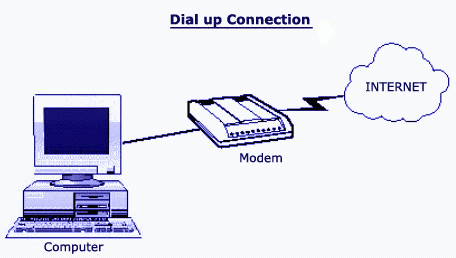
This Post Says to How to Create or Configure New Dial-up Connections in Windows XP.
Go to Start, then select Control Panel then click Network Connections.
Select Create a New Connection. This brings up the New Connection, which help you to create a new connection.
- Select Connect to the Internet and Click the Next button to continue with the wizard.
- Select Setup my Internet connection manually and Click the Next button.
- Select Connect using a dial-up modem and Click the Next button.
- Type your ISP name in the ISP Name text box. Click Next.
- Enter ISP dial up Phone Number.
- Type your Username and Password.
- Click the Next button to continue.
- Now click Finish to create the icon and finish the setup.

Usually Sometimes happens different error codes in Internet Browsing. If you know the Error Occured and if you Know the Solution for that it is OK, but if you don't know, Here are the Reason Codes.
Below are the Error Codes and the Reasons for that Codes :
- 400 - This is bad request error, First check you may be typing wrong URL name and server could not understand your request.
- 401 - You are trying to open any unauthorized access site or page. Check your username and password if you are trying to open any webpage.
- 402 - Payment Required Error
- 403 - You are trying to open any forbidden page and you are blocked by that domain.
- 404 - Here you are trying to open the webpage that was removed or re-named, also check the URL spelling.
- 408 - This is time out error. you should send the request with in time that the server set for you.

If you want to get some information about any topic using search engine, the search engine will search the given information and will provide a list of links of websites along brief description about each website.
You should use the right search Terms for Relevant results.
The Below Points Must be Noted to Search the Information on the Internet :
- You can type all word in lowercase and also in uppercase, search engine will return the same result. But the best practice is type search keywords always in lowercase.
- Use + sign between words if you want to search the all words. For example, to search Travelling Routes and Maps, then type as: travelling+routes+maps
- To search the exact match, write the words in double quotation marks. For example to search the Movie Theaters, then type as: "Movie Theaters"
- Always avoid to use "and", "or" with search keywords, because these words will affect the search result.